
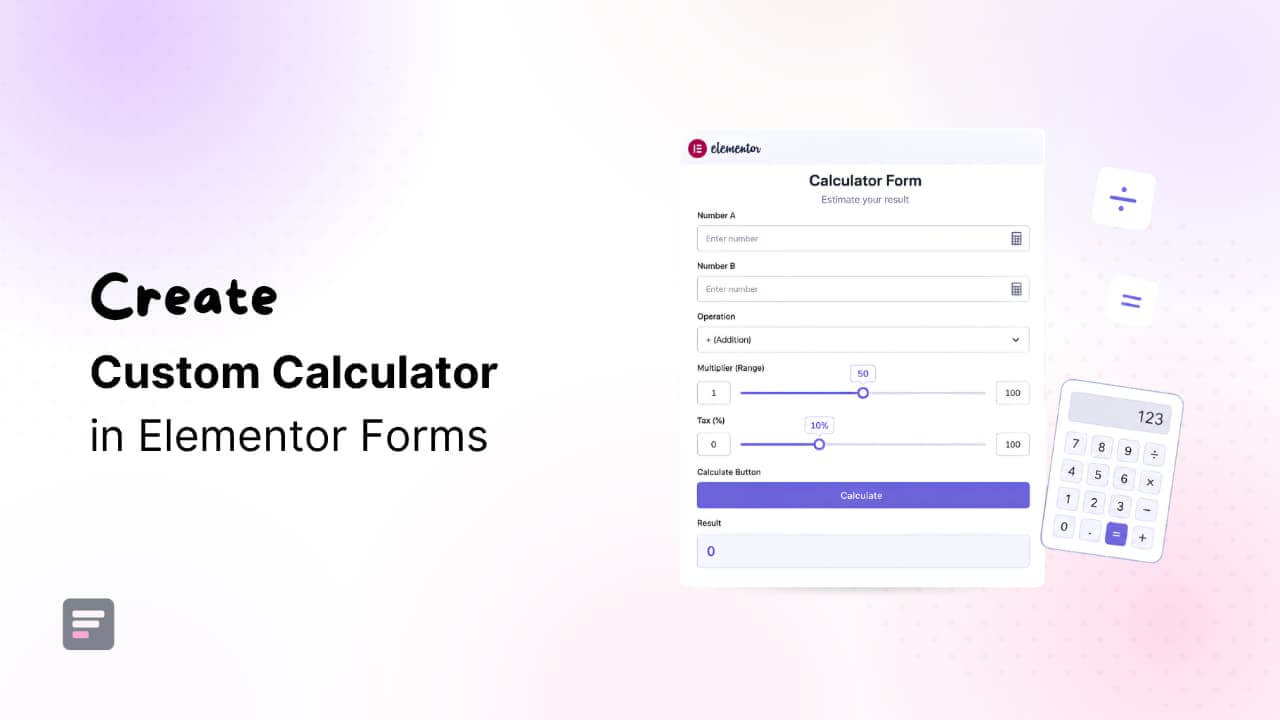
Creating a custom calculator in Elementor is a great way to improve user engagement and provide instant value to your website visitors.
Whether you want to build a price calculator, loan calculator, BMI calculator, mortgage calculator, or quotation form, adding calculation functionality can help users get quick answers without leaving your website.
However, Elementor’s native Form widget does not include built-in calculation features.
Traditionally, website owners had to rely on expensive third-party calculator plugins or custom JavaScript coding, making the process complicated to maintain.
Fortunately, with Cool FormKit’s Calculator Field for Elementor Forms, you can create powerful custom calculators directly inside Elementor without writing a single line of code.
Using simple formulas, advanced form fields, and conditional logic, you can build interactive calculators for any industry or use case.
In this guide, you’ll learn how to create a custom calculator in Elementor step-by-step using Cool FormKit and turn your forms into powerful calculation tools.
What is Cool FormKit for Elementor Forms?
Cool FormKit is a powerful addon for the Elementor form addon that extends the functionality of the native Elementor form widget without replacing it.
Instead of writing complex code, Cool FormKit lets you create calculators in Elementor using simple field references and formulas.
Easily use values from other form fields to perform basic or advanced calculations without any coding knowledge.
Since the calculator works directly inside Elementor Forms, results are calculated in real-time as users enter their information, no page refresh required.
Plus, you can fully customize the calculator’s design using Elementor’s built-in styling options.
Now, let’s build a Project Cost Calculator from scratch using Cool FormKit to see how it works.
Step-by-Step Guide to Build a Cost Calculator for Elementor Forms
Follow the steps below to create a calculator using Cool FormKit:
Step 1: Add a Form
- Firstly, make sure you have installed and activated Elementor and Cool FormKit.
- Open the page you want to edit with Elementor.
- Drag the Form widget to your page.
Step 2: Add Form Fields
To calculate the total project cost, you’ll first have to collect some basic information from the user (client).
Add the following fields to your form:
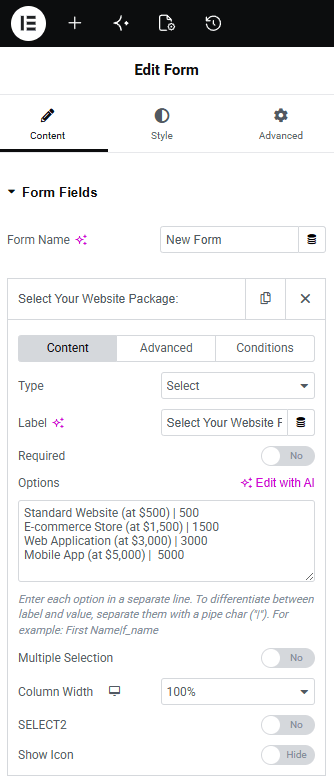
- Add a Select field to the form.Set the label to “Select Your Website Package“.
- Open the Advanced settings of the field and set the Custom ID to type. Add the following options:
- Standard Website (at $500) | 500
- E-commerce Store (at $1,500) | 1500
- Web Application (at $3,000) | 3000
- Mobile App (at $5,000) | 5000
- Note: The number before the pipe (|) is the base price the calculator will use.
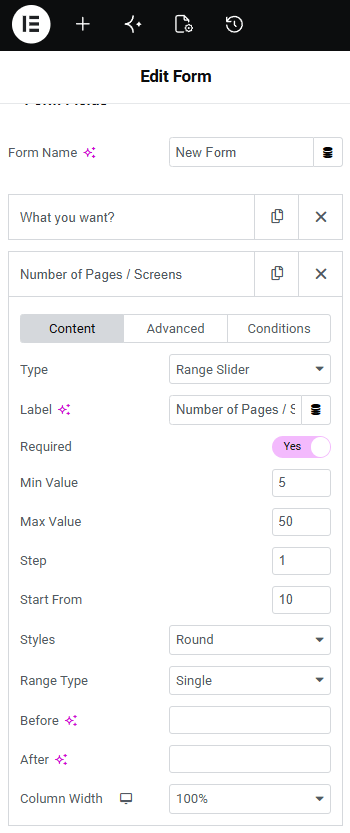
- Next, add a Range Slider field.
- Set the label to “Number of Pages / Screens”.
- Set the Minimum Value to 1.
- Set the Maximum Value to 50.
- In the Advanced settings, set the Custom ID to pages.
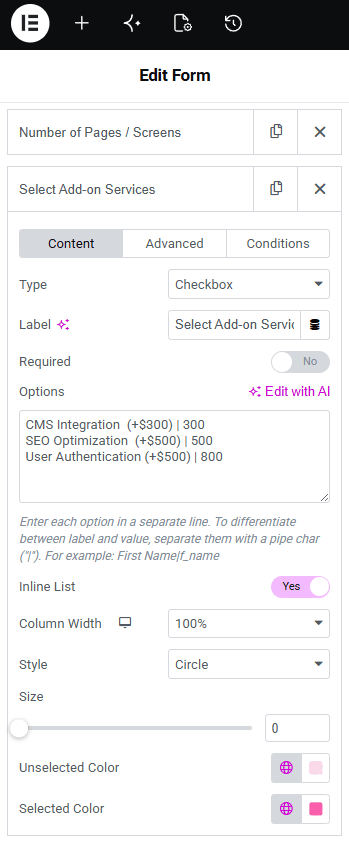
- Add a Radio field. Set the label to “Select a Premium Addon”.
- From the Advanced settings, set the Custom ID to feature.
- Add the following options:
- CMS Integration (+$300) | 300
- SEO Optimization (+$500) | 500
- User Authentication & Login (+$800) | 800
Step 3: Add the Calculator Field & Formula
- Now, add a Calculator field to the form.
- Set the label to “Estimated Build Cost”.
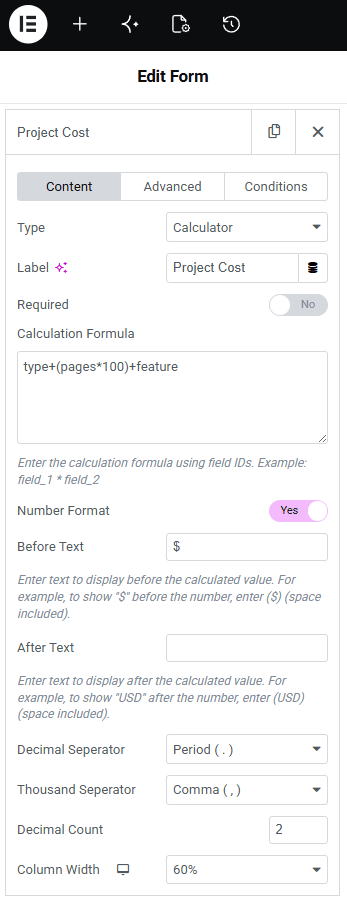
- In the Formula field, enter:
type + (pages * 100) + feature
This formula adds the project’s base price, the page cost, and the selected premium feature cost to generate the final estimate.
That’s it! Now, as the user changes the dropdown, slides the page count, or toggles different features, the total price will adjust instantly.
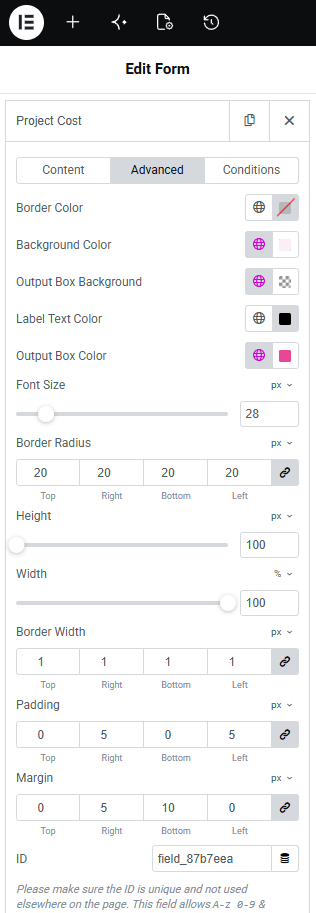
Step 4: Formatting the Output
Lastly, let’s format the output of the calculator:
- Prefix: Enter $ (or your local currency symbol).
- Decimals: Select a decimal separator: either a period (.) or a comma (,) based on your requirement.
- Thousands Separator: Choose a comma , to make large project totals easily readable.
- Suffix: Add a suffix or unit after the calculated value, for example, “USD” or “per month.”
Project Cost Calculator Demo
Conclusion
Adding a custom calculator to your WordPress site used to take a lot of time. With Cool FormKit, you can build a beautiful, working calculator in just a few minutes.
But that is not all. Cool FormKit gives you much more than just a calculator. It comes with over 25 advanced features packed into a single addon. Along with Conditional Logic for Elementor Forms, Country Code Dropdown, Rating Field and more.
Cool FormKit Addon
Extend Elementor forms with advanced features like calculator field, conditional logic, and more.