
Cool FormKit   »   Features    »   Conditional Webhook

Share it:

Conditional Webhook in Elementor Forms

Route form submissions to different webhook URLs automatically based on user input using Conditional Webhook in Elementor form.

Excellent Support Team

Add Conditional Webhook in Your Form

Want to send form submissions to different webhook automatically based on user input?

The Cool FormKit plugin lets you easily add a powerful Conditional Webhook to your form. Instead of sending all submissions to one fixed URL, you can route data to different webhook URLs based on selected options like Sales, Support, Feedback, or any custom field value.

It works with:

  • Elementor Pro form widget
  • And also with Elementor Free using:
    • Hello Plus (form lite widget)
    • Pro Elements plugin
    • Cool FormKit (cool form widget)

No Elementor Pro? No problem! Just install Cool FormKit and start creating smart, condition-based webhook integrations in your forms today.
Conditional Webhook Settings

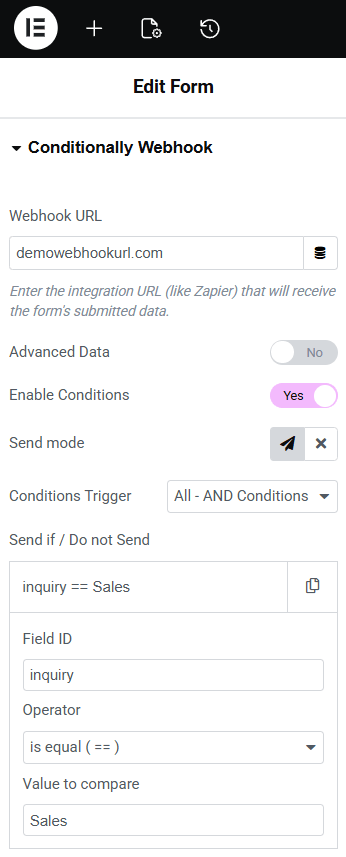
  • Webhook URL: Enter the destination URL where the form data should be sent (e.g., CRM, support tool, automation platform).
  • Enable Conditions: Turn this option on to activate conditional logic for that webhook.
  • Send Mode: Decide what should happen when conditions match:
    • Send – The webhook will trigger when the condition is true.
    • Do Not Send – The webhook will not trigger when the condition is true.
  • Condition Trigger Logic: Choose how multiple conditions should work together:
    • AND Logic – All conditions must be true.
    • OR Logic – At least one condition must be true.
  • Condition Setup
    • Field ID – Enter the ID of the form field that will control the condition (e.g., inquiry_type).
    • Comparison Operator – Select how the value should be compared (Equals, Not Equals, Contains, Greater Than, etc.).
    • Value – Enter the value that should match the selected field (e.g., Sales, Support, Feedback).
  • Multiple Conditional Webhooks: Add more conditional webhook actions (Webhook Conditionally 1, 2, 3…) to route submissions to different URLs based on different conditions.

FAQs

How to add a Conditional Webhook in Elementor Form?

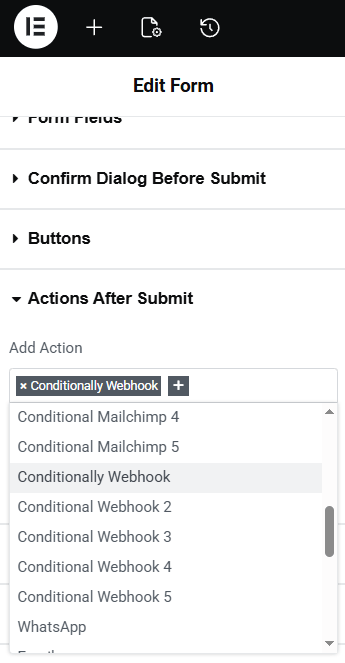
To add a Conditional Webhook, edit your form in Elementor and go to Actions After Submit. Select Conditionally Webhook, then enter your webhook URL and enable conditions. Configure the field ID, comparison operator, and value to control when the webhook should trigger.

Yes. You can use Conditional Webhook with Elementor Pro Form widget, and also with Elementor Free by using Hello Plus (form lite widget), Pro Elements plugin, or the Cool FormKit form widget.

Yes. You can add multiple conditional webhook actions and route submissions to different URLs based on user input.

  • Sending Sales, Support, and Feedback inquiries to different webhook URLs
  • Routing leads to different CRMs based on selected services
  • Connecting forms to multiple automation platforms
  • Handling multi-location or multi-branch business forms
  • Managing event registrations or applications with different submission paths
  • Automatically route submissions to the correct department or tool
  • Save time by eliminating manual sorting of entries
  • Improve workflow automation and response speed
  • Connect different user selections to different CRM or support systems
  • Reduce errors caused by sending all data to one single webhook

Conditional Webhook Demo

Demo Notice:
This is a demo. In real use, you’d be redirected to Sales webhook.
Demo Notice:
This is a demo. In real use, you’d be redirected to Support webhook.
Demo Notice:
This is a demo. In real use, you’d be redirected to Feedback webhook.
Demo Notice:
This is a demo. In real use, you’d be redirected to Billing webhook.

Real Feedback from Our Plugin Users

Our WordPress plugins are trusted for their quality, compatibility and excellent customer support.
Cool FormKit - Advanced Form Builder for Elementor

Pricing Plans

Use Cool FormKit to add a beautiful range slider field in Elementor form along with 25+ others advanced fields & features.

Annual License
For 1 Website
$x
$x
/ Year
0% Discount Applied
Renew Yearly
POPULAR
Lifetime License
For 1 Website
$x
$x
/ One Time
0% Discount Applied
🔥 Limited-Time Discount Offer! Ending in:
Days
Hours
Minutes
Seconds
14-Day Money Back Guarantee

We want you to love our plugins. If it’s not the right fit, you’re covered by our 14-day money-back guarantee.


Secure SSL encrypted payment by PayPal & Stripe (Credit & Debit Cards)

Special offer- only this week

Upto

40%

OFF

OFFER ENDS IN:

D
H
M
S
New Year Sale
save up to 40% off

Offer
ends in:

Days
Hours
Min
Sec
save up to 40% off

SUPER SALE

up to
40
%

off

Offer
ends in:

Days
Hours
Min
Sec
Special Sale

UPTo

40% 

OFF

Upto 40% off

OFFER ENDS IN:

D
H
M
S

Easter & Good Friday Special Sale

UP TO 40% OFF

Offer ends in:

D
H
M
S

WordCamp Asia Celebration Sale

UP TO 40% OFF

Offer ends in:

D
H
M
S
WordPress Birthday Sale
Celebrate with Big Savings

Offer
ends in:

Days
Hours
Min
Sec

SUPER SALE

up to
40
%

off

UPTO

40% OFF

Summer sale
save up to 40% off

Offer
ends in:

Days
Hours
Min
Sec
Mid-Year Special Sale
save up to 40% off

Offer
ends in:

Days
Hours
Min
Sec

Offer
ends in:

Days
Hours
Min
Sec

SUPER SALE

up to
40
%

off

UPTO

40% OFF

Independence
Day Sale

SUPER SALE

up to
40
%

off

Offer
ends in:

Days
Hours
Min
Sec

UPTO

40% OFF

SUPER SALE

up to
40
%

off

Offer
ends in:

Days
Hours
Min
Sec

UPTO

40% OFF

SUPER SALE

up to
40
%

off

Offer
ends in:

Days
Hours
Min
Sec

UPTO

40% OFF

Christmas
Special Sale

Upto

40%

OFF

Ends in

Days
Hours
Min
Sec

UPTO

40% OFF

Year End Sale
save up to 40% off

Offer
ends in:

Days
Hours
Min
Sec
save up to 40% off

SUPER SALE

up to
40
%

off

259200

Offer
ends in:

Days
Hours
Min
Sec

Limited Time Special Offer

UP TO 40% OFF

259200

OFFER ENDS IN:

D
H
M
S

Limited Time Special Offer

UP TO 40% OFF

259200

OFFER ENDS IN:

D
H
M
S
Christmas Special Sale
Upto 40% OFF
Christmas
Special Sale

Upto

40%

OFF

Ends in

Days
Hours
Min
Sec